Feed the Cups Steam Deck and Controller Support Settings
Full controller support on Steam, button glyph toggles, key remapping, default actions, local co-op input setup, and gamepad fixes in Feed the Cups.
Part of Feed the Cups Guide: Shop Day, Rent, Stars, Combos, and Residential Area.
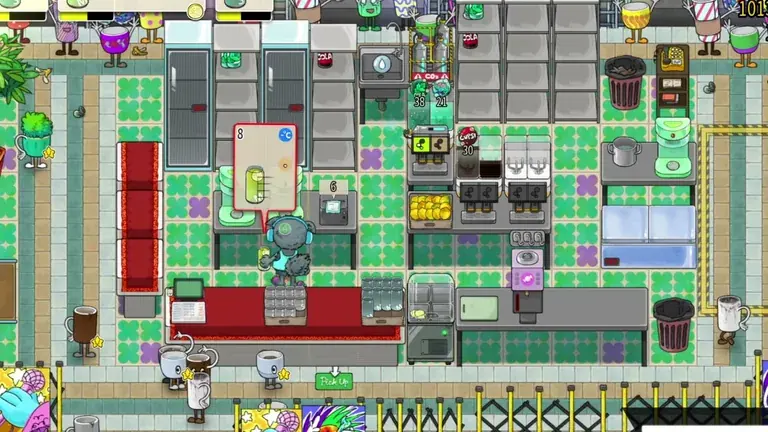
Feed the Cups lists Full controller support on Steam, and both the store page and an in-game tip recommend using a controller. Inside the game, you can switch on-screen prompts between ABXY and ○×□△ layouts, remap controller or keyboard actions, toggle vibration and interaction priority, and set up solo or 2-player local co-op inputs.
Before tuning your controls for busy shifts, review the daily shop loop and core prep rules in our beginner’s guide.
Steam Deck Compatibility and Store Controller Support
On Steam, Feed the Cups lists Full controller support alongside Remote Play Together, and its Windows minimum requirements note that gamepads are recommended. The free Steam demo also lists Full controller support and Remote Play Together, along with Gamepad Recommended. Feed the Cups ships on Steam for Windows and Mac without a native Linux build, so on Steam Deck it runs the Windows version through Proton; you can inspect the Steam Deck Compatibility section on the game’s Steam store or library page for Valve’s detailed compatibility breakdown.
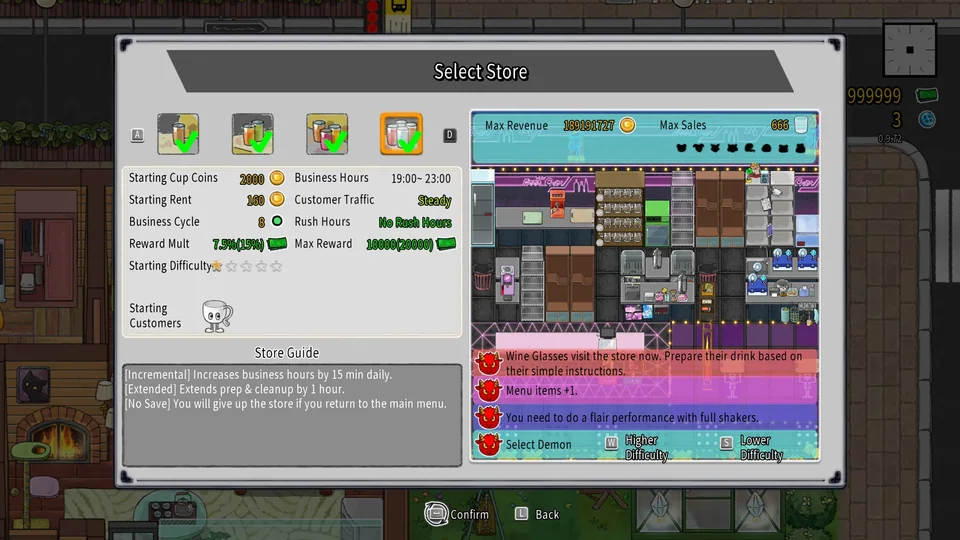
For desktop system requirements, Mac cross-play notes, and console availability, check our platforms and console guide.
In-Game Controller Settings and Button Prompts
The Settings menu provides dedicated options for gamepad button icons, key bindings, vibration, interaction targeting, and display readability.
- Controller Button Display lets you swap on-screen glyphs between ABXY and ○×□△ layouts; developer updates also added PS controller button display and later rebuilt the button icon system to reduce shader stutter.
- Key Settings splits input customization into Controller Settings and Keyboard Settings, showing Waiting for key while rebinding, flagging conflicts with Key already in use, and offering Default Settings to restore stock bindings; a post-launch patch also resolved changes to key bindings failing to take effect.
- Vibration toggles subtle haptic feedback during actions such as equipment repairs, and vibration stays quiet whenever you play on keyboard instead of a controller.
- Pickup Priority and Interaction Priority let characters favor either Ground items or Objects (devices) when standing between them, and in multiplayer rooms the host’s priority settings take precedence.
- Display and readability switches in Settings include Camera Distance, Windowed Mode (Fullscreen, Windowed, or Borderless Window), Max Frame Rate, V-Sync, Night Effects (which developers noted can be switched off to improve performance), and Stress Value Display.
Default Controls, Skills, and Timing Prompts
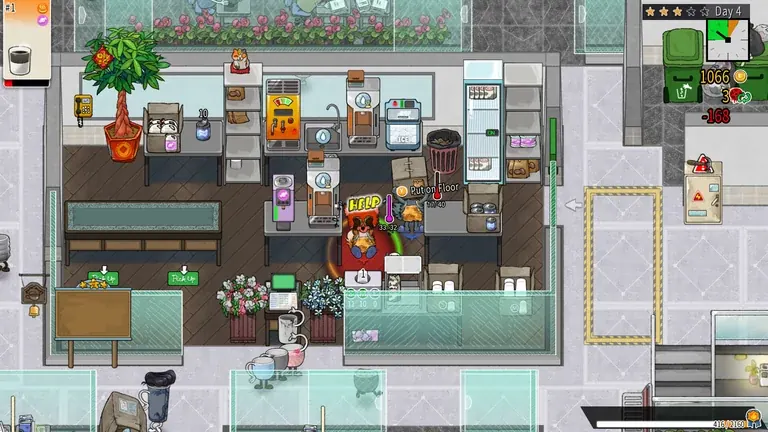
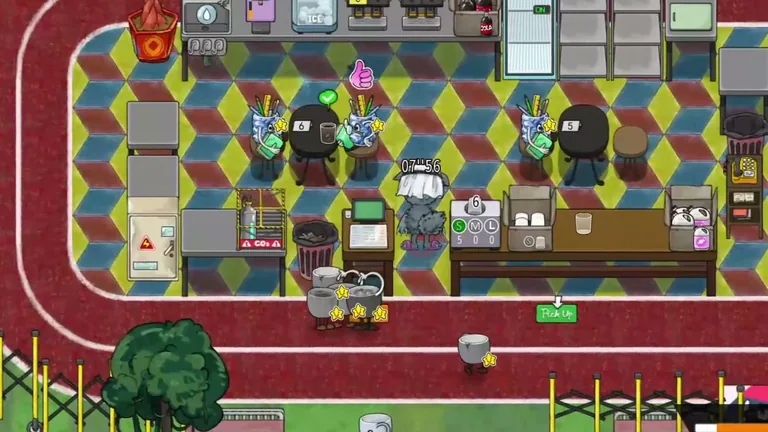
Context-sensitive button prompts float directly over boxes, tables, shelves, counters, dispensers, and held tools such as the mop, updating to match either keyboard or controller input.
- Directional movement and menu navigation handle character walking alongside Menu - Up, Menu - Down, Menu - Left, and Menu - Right, while the pause button opens the Main Menu.
- Confirm (Take, Place) maps to the A action slot for grabbing supplies, placing objects, and confirming menu choices.
- Swap Numbers (Cancel) maps to the B action slot for backing out of menus and swapping order numbers between cups.
- Interact (Open, Stir) maps to the X action slot for opening containers, stirring mixtures, and running station tasks.
- Special (Toggle, Serve, Put Down) maps to the Y action slot for toggling appliances, handing off finished drinks, and setting items down.
- Skill maps to the R1 action slot to trigger each character’s active ability.
- Special (QTE) maps to the L1 action slot for timed prompts, including pressing the button inside the white box to call out a Welcome greeting at star 3 or higher and timing flair catches with a
 Shaker;
 Beaver has the Etiquette skill, which widens the timing window on these special button prompts.
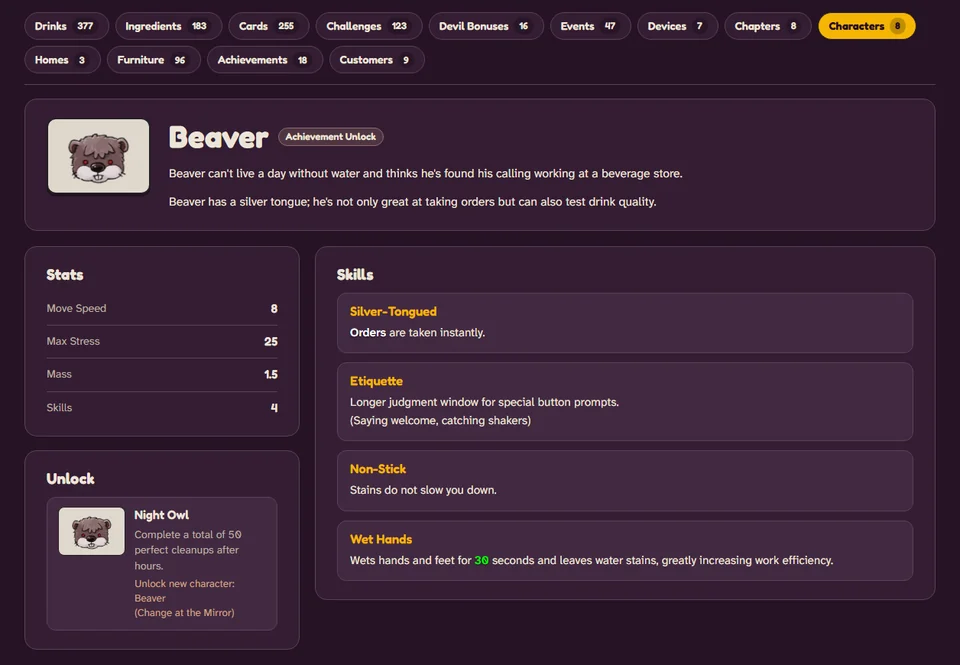
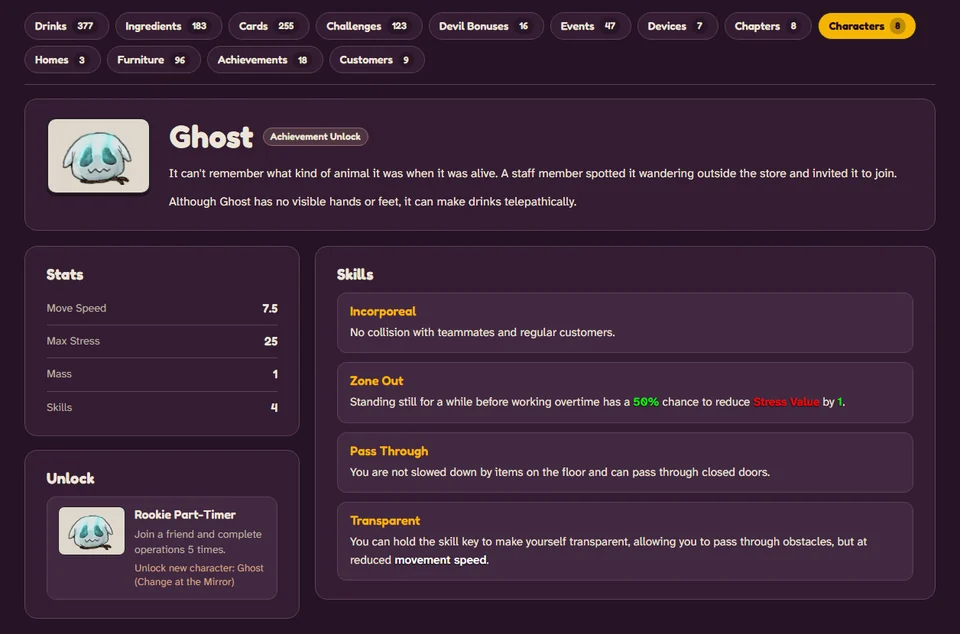
Some actions ask you to hold a button down rather than tap it—such as opening bottle lids, or holding the skill key with  Ghost to trigger Transparent and pass through obstacles at reduced movement speed—whereas pouring adds one liquid portion per button press.
Keyboard Versus Controller for Solo and Local Co-op
Even though an in-game tip recommends using a controller, keyboard controls can be remapped inside Key Settings. For keyboard play, developer notes recommend pairing space with the J, K, and L keys so your right hand shares the workload, and a later update fixed severe frame drops that previously occurred during simultaneous controller and keyboard input.
- Local co-op supports 2 players on a single shared screen (or via Remote Play Together) and opens inside the home by interacting with the bed to reach Change Player Controls and Local Co-op Settings.
- From that menu, players assign inputs with Join with Controller, Join with Keyboard, or Cancel Control, and a post-launch fix resolved incorrect button prompts when two local players interacted with the same object.
- When two players share a single keyboard on the same screen, toggle the num lock key so Player 2 can use the numeric keypad.
- In Local Co-op, the second player cannot save character progress or earn EXP, and Local Co-op cannot run alongside Online Co-op.
- For 2-to-4 player online lobbies and multiplayer scaling rules, read our co-op and multiplayer guide.
Fixing Unresponsive or Jumbled Controller Buttons
If your gamepad works normally in other Steam titles but buttons are unresponsive, ineffective, or jumbled in Feed the Cups, developer notes point to three steps to try first.
- Reset controller input through Steam: open Steam Settings, enter Controller, choose Test device input, run Start test, and select Reset device input to test and reset the controller buttons.
- Turn off Steam Input for jumbled or unresponsive buttons: right-click Feed the Cups in your Steam library, open Properties, navigate to Controller Configuration, and disable Steam Input.
- Before editing controls in Controller Settings, make sure your Steam Controller key bindings match, and use Default Settings whenever Key already in use blocks a clean rebind.
In This Guide
Sources
- Feed the Cups game files (Steam build 25975646 (demo 2400400, extracted 2026-11-21))
- Steam Store Page — Feed the Cups (App 2336220)https://store.steampowered.com/app/2336220/
- Steam Store Page — Feed the Cups Demo (App 2400400)https://store.steampowered.com/app/2400400/
- Steam Developer Announcements — Feed the Cups (App 2336220)https://store.steampowered.com/news/app/2336220/
- Steamworks Steam Deck Compatibility Documentationhttps://partner.steamgames.com/doc/steamhardware/compat
- Steam store screenshots and developer announcements (Steam App 2336220)
- Developer gameplay footage